 patrickz
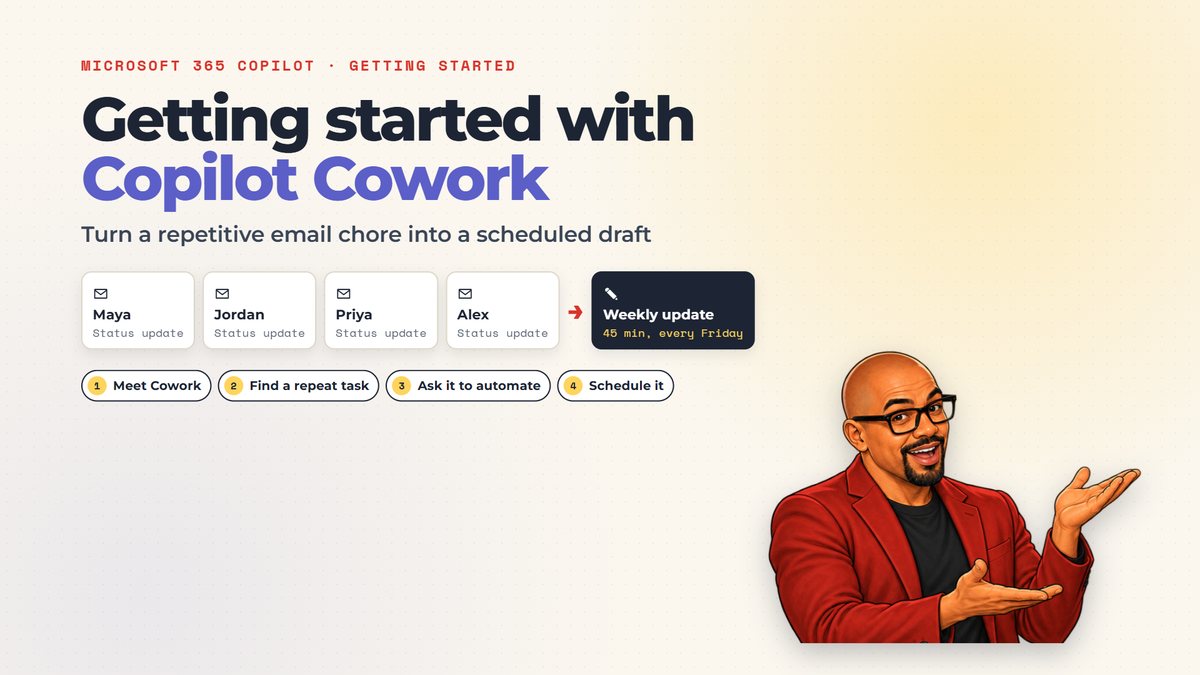
Plenty of us have Cowork now. Far fewer have given it a real chore.
Many of my colleagues have Microsoft 365 Copilot, and Cowork is part of what we can use with it. Chat gets the attention because it answers questions. Cowork is the part that can take a job with several steps, work through it, and come back on a schedule.
The hard part is not the button. It is picking a first task that is safe, useful and easy to check. So I made a short getting-started guide around one example that most teams will recognize: every Friday, four teammates email a status update and somebody combines them into one summary for a manager.
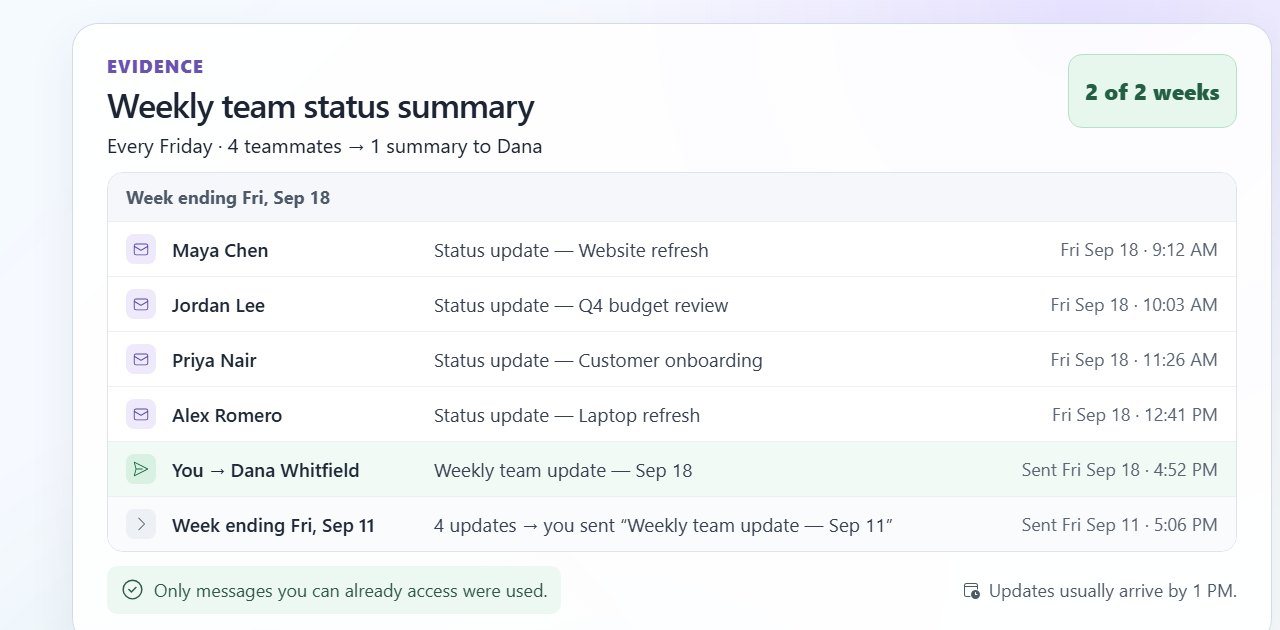
In the video and the steps below, I ask Cowork to review two weeks of my email and recommend what to automate. It finds that Friday summary, shows me the emails behind the recommendation, and turns my plain-English request into a weekly automation. The automation only saves a draft. I still read it and press send.
Watch the result
Getting started with Copilot Cowork
A four-minute walkthrough of the steps below. The Cowork screens are a staged demo with fictional people and email. Patrick’s voice is AI-generated with GPT Live, and the captions are burned in.
Step 1: open Cowork, not Chat
In Microsoft 365 Copilot, select Cowork in the toggle at the top, next to Chat. Use Chat for quick answers and writing. Use Cowork when the work takes several steps, like reading a batch of email and building something from it.
Two things make a first try low-risk. Cowork only uses the email and files you can already access, and it asks for your approval before important actions, like sending an email.
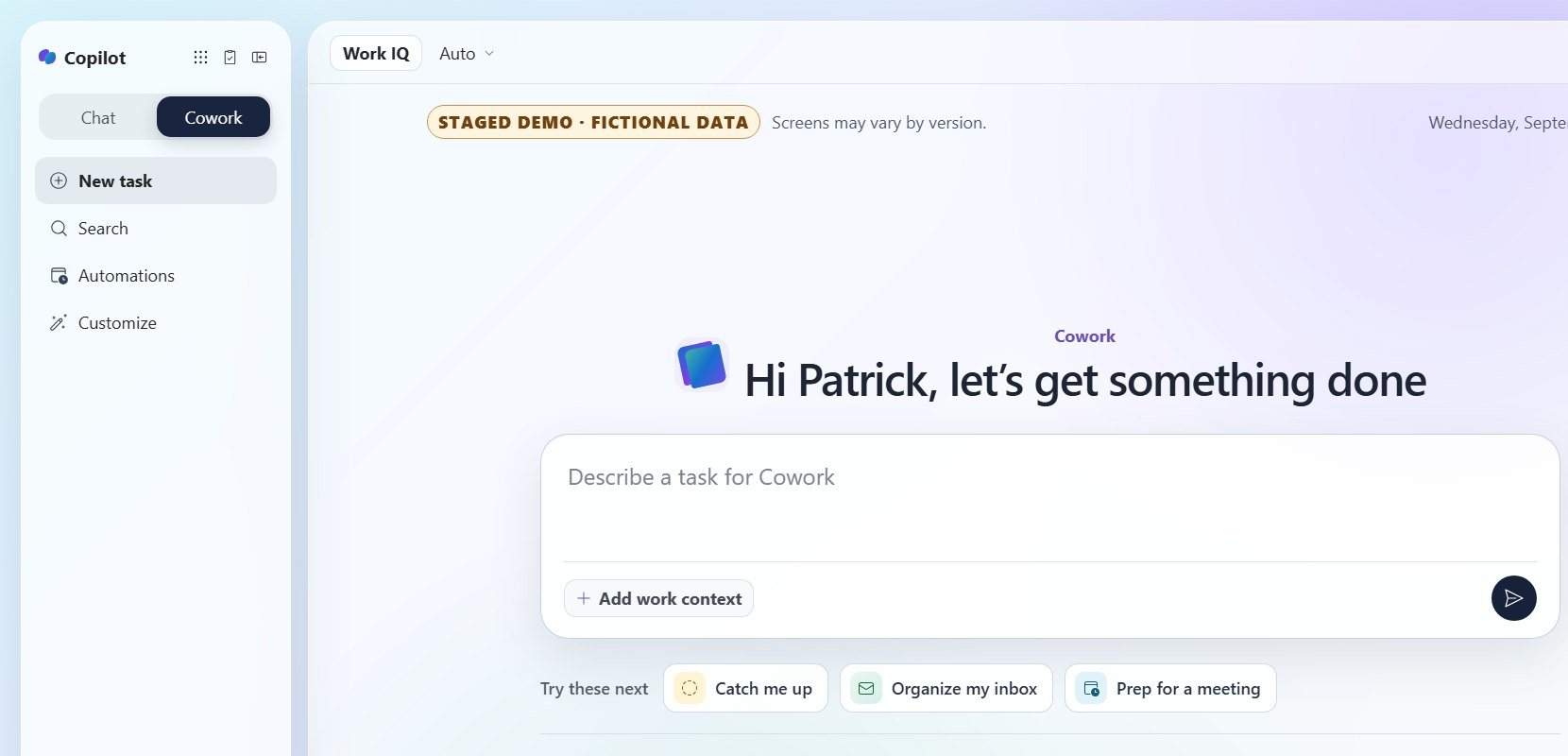
Steps 2 to 4: ask it to find the chore, then check its evidence
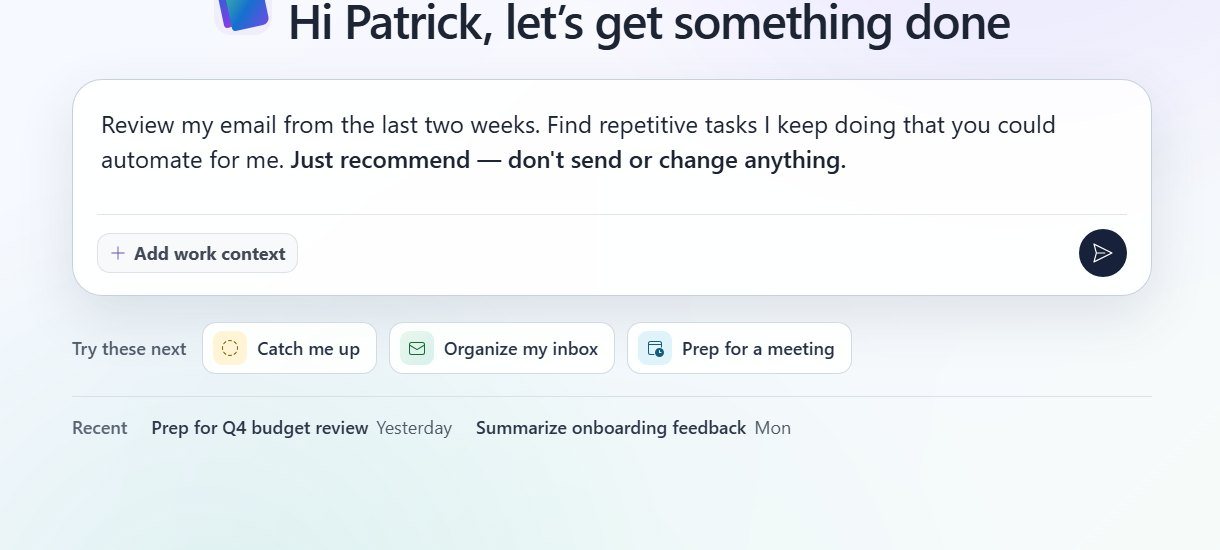
Step 2: ask for recommendations only. Paste this into the task box. The last sentence keeps the first request read-only.
Step 3: pick one task. Cowork lists what it found. A good first pick happens on a schedule and follows the same format every time. Leave anything that goes outside the company, or needs your judgment each time, for later.
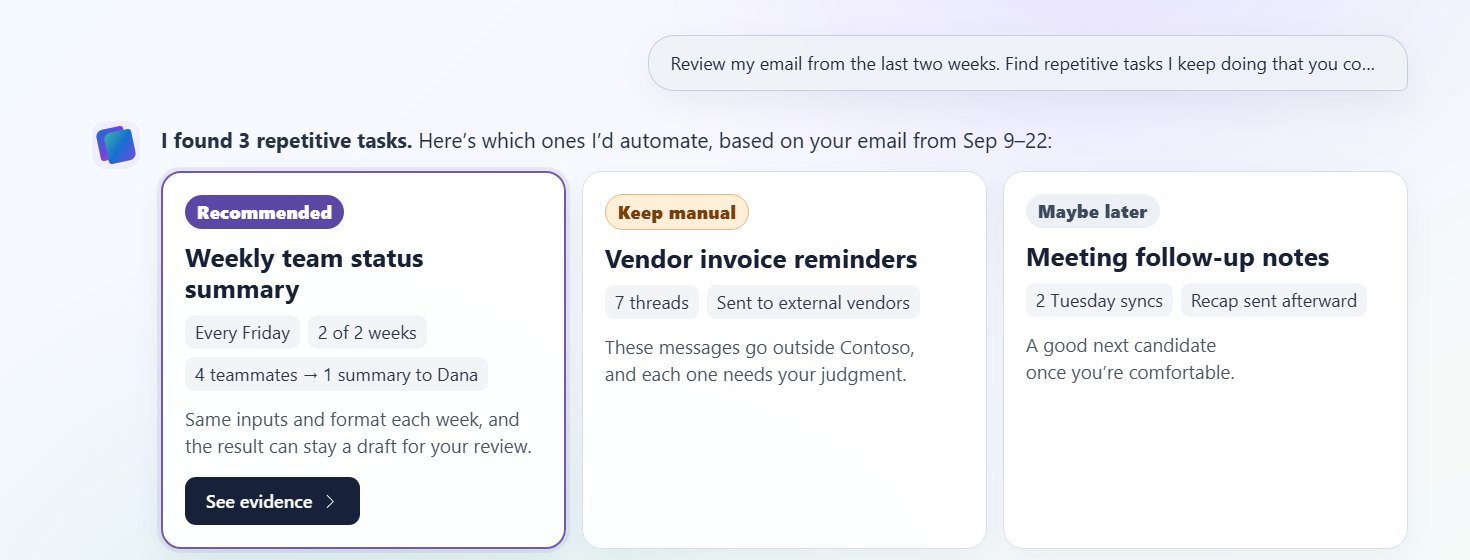
Step 4: check the evidence. Ask Cowork to show you the emails behind its pick, and confirm it really is something you do every time.
Steps 5 to 7: describe the schedule, turn it on, stay in charge
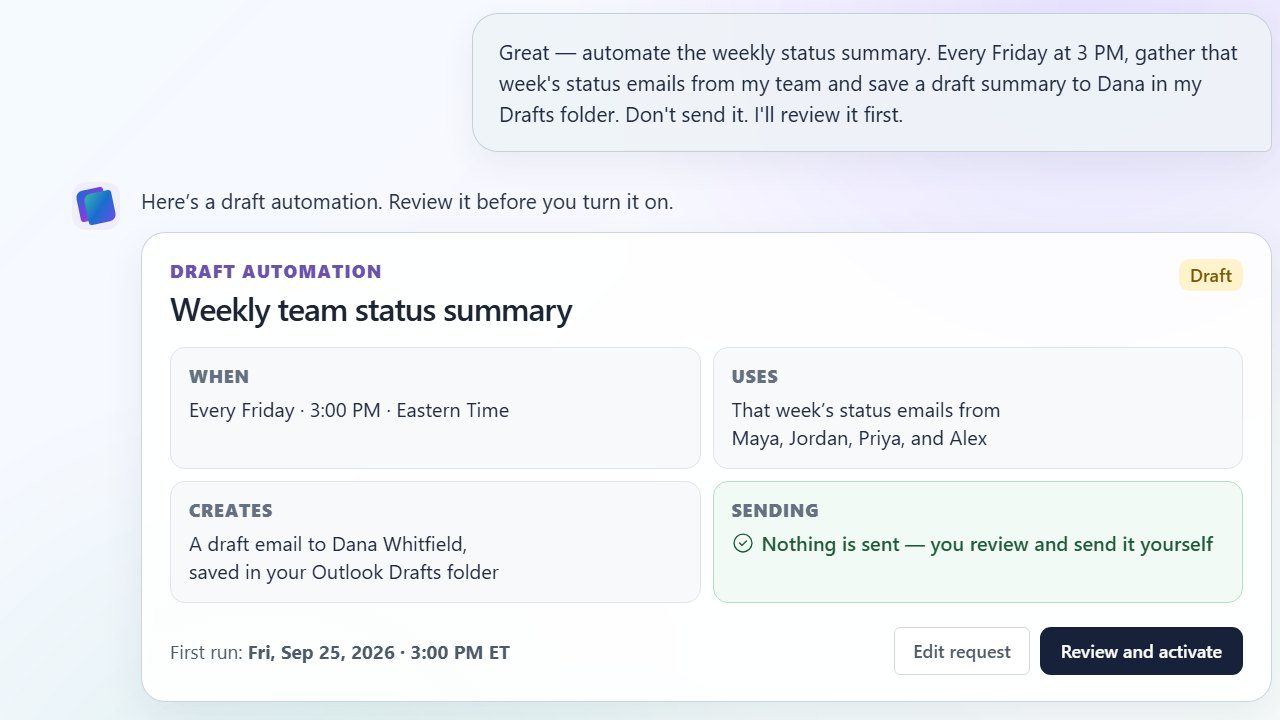
Step 5: ask it to automate the task. Say what should happen and when. Change the details to match your chore, and keep “Don’t send it.”
Cowork replies with a draft automation. Read when it runs, what it uses, what it creates, and that nothing is sent. If anything is wrong, just tell it what to change.
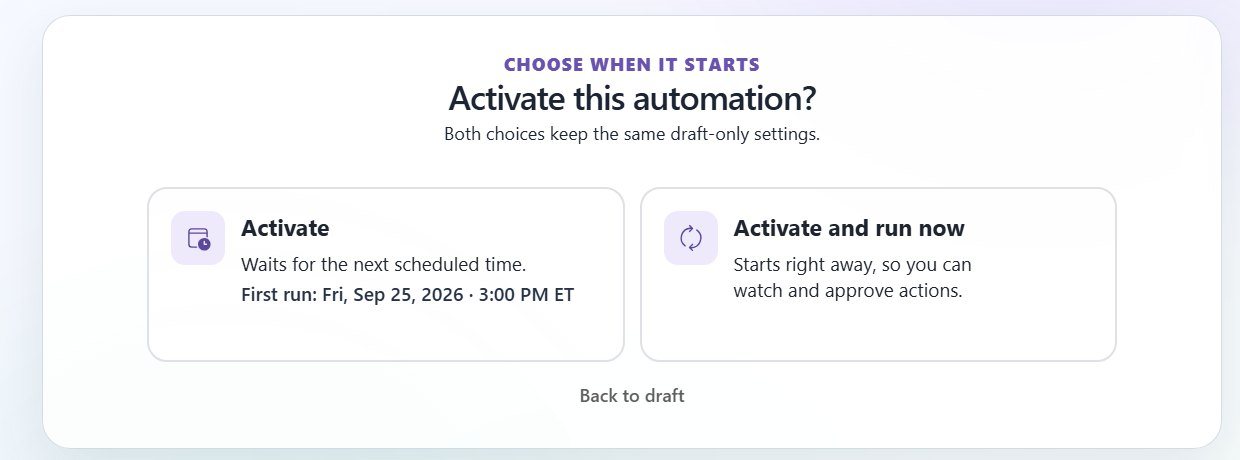
Step 6: turn it on. Activate waits for the next scheduled time. Activate and run now starts right away, so you can watch and approve actions.
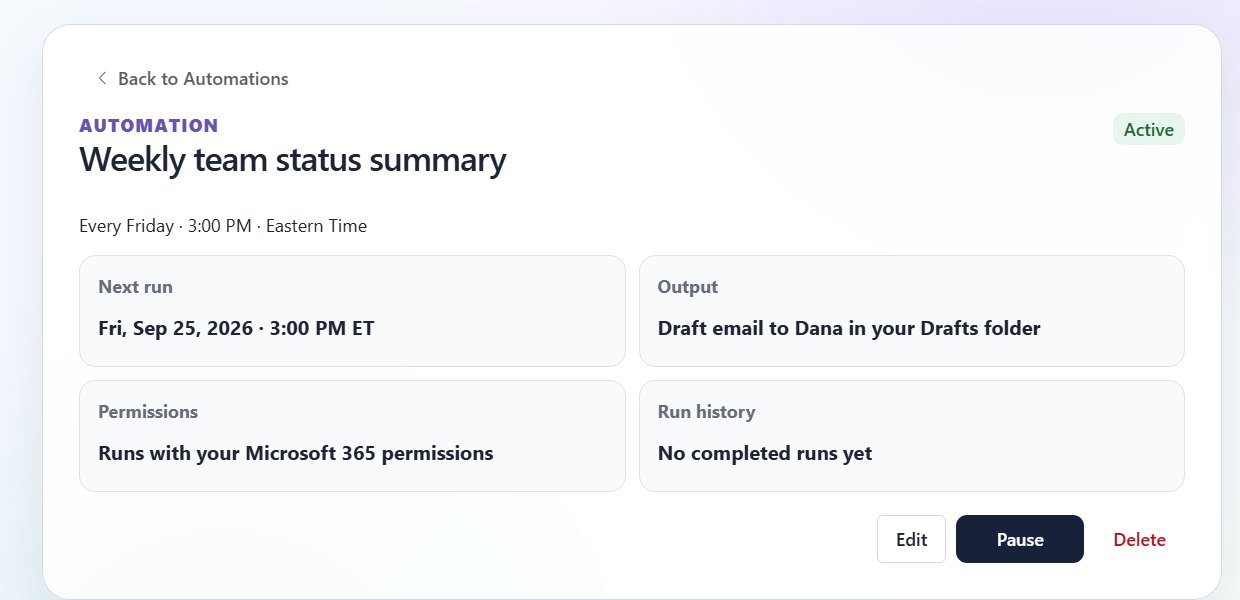
Step 7: stay in charge. Open Automations. Runs shows upcoming and past runs. Manage schedules lets you edit, pause, resume or delete. The task keeps running even when your laptop is off. When it runs, open your Drafts folder, review the summary and send it yourself.
Try it
Set up one automation this week
Give yourself about fifteen minutes. The goal is one working automation that saves a draft, not a perfect one.
- Confirm you have Cowork
Open Microsoft 365 Copilot. If Cowork appears next to Chat, you’re ready. If not, check with your IT team.
- Ask for recommendations only
Use the review prompt below and keep “Just recommend — don’t send or change anything.”
- Pick one repeat task and check the evidence
Choose something on a regular schedule with the same format each time, and look at the emails Cowork based it on.
- Ask for a draft-only automation
Describe what, when and where the draft goes, then read the draft automation before you activate it.
- Review the first draft yourself
After the first run, open your Drafts folder, fix anything that is off, and send it yourself.
You’ll know it worked when
An automation shows as active under Automations, its first run saved a draft rather than sending anything, and you reviewed that draft before it went out.
When you’re ready
Good second automations
Once the first one has run a few times, look for the same shape elsewhere: several inputs that arrive on a schedule and one output that follows a template.
- Meeting follow-up notes after a recurring meeting
- A Monday digest of decisions and owners from a project channel
- A weekly roundup of the reports your team sends you
Keep anything that goes to people outside the company, or that needs fresh judgment every time, as a manual task, even if Cowork could draft it.
Avoid these
Common mistakes
- Waiting for Cowork to suggest automations on its own
It won’t volunteer them. Ask it to review your email and recommend tasks, the way the prompt below does.
- Letting the first automation send email
Start with a draft in your Drafts folder. You can decide later whether a task ever deserves more trust.
- Skipping the evidence
Look at the emails behind the recommendation. If they don’t show a real pattern, pick a different task.
- Starting with a task that needs judgment
Invoices, external replies and anything sensitive make poor first automations. Repetitive internal summaries make good ones.
Copy, adapt, run
Prompts to try
Paste one into any chat assistant and replace anything in [brackets].
Ask Cowork to review your email
Review my email from the last two weeks. Find repetitive tasks I keep doing that you could automate for me. Just recommend — don’t send or change anything.
Ask for the evidence
Show me the emails you based that recommendation on.
Turn the task into a draft-only automation
Great — automate [the task]. Every [day] at [time], gather [what it should use] and save a draft [what it should create, and for whom] in my Drafts folder. Don’t send it. I’ll review it first.
The tool kit
Tools and links
- Microsoft Learn: Use CoworkOfficial guidance on schedules, Automations, Runs and Manage schedules.
- Microsoft Learn: Get started with CoworkWhere Cowork appears and what access it needs.
- Microsoft Learn: Cowork FAQPermissions and approval prompts before sensitive actions.
- HyperFrames and GPT LiveHow the training video was made: HeyGen’s open-source HTML-to-video framework, with Patrick’s narration voiced by GPT Live.
The short version
What to remember
- Cowork sits next to Chat in Microsoft 365 Copilot. If you don’t see it, ask your IT team.
- Ask it to review your email and recommend; it won’t propose automations on its own.
- Check the evidence before you automate anything.
- Describe the schedule in plain English and start with a draft, not a send.
- Automations, Runs and Manage schedules are where you watch, pause, resume or delete it.